2022 Toyota Sienna Owner’s Manual — Using the voice command system
Audio system
Voice command system
The voice command system enables the hands-free system to be operated using voice commands.
Using the voice command system
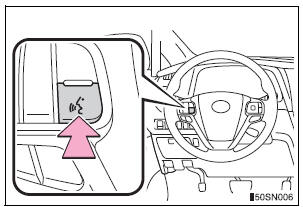
- Press the talk switch.
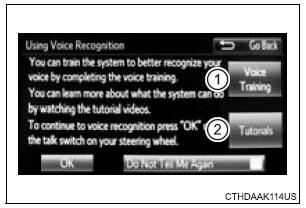
- Select to train voice recognition.
- Select to start the voice recognition tutorial.
- Select “OK” and say the desired command.
On the list screen, you can select the desired command.
To cancel the voice command system, press and hold the talk switch.
Microphone
When using the microphone
- It is unnecessary to speak directly into the microphone when giving a command.
- When “Voice Prompt Interrupt” set to on, it is not necessary to wait for the confirmation beep before speaking a command.
- Voice commands may not be recognized if:
- Spoken too quickly.
- Spoken at a low or high volume.
- The roof or windows are open.
- Passengers are talking while voice commands are spoken.
- The air conditioning speed is set high.
- The air conditioning vents are turned towards the microphone.
- In the following conditions, the system may not recognize the command properly and using voice commands may not be possible:
- The command is incorrect or unclear. Note that certain words, accents or speech patterns may be difficult for the system to recognize.
- There is excessive background noise, such as wind noise.
Casual speech recognization
Due to natural language speech recognition technology, this system enables recognition of a command when spoken naturally. However, the system cannot recognize every variation of each command.
In some situations, it is possible to omit the command for the procedure and directly state the desired operation.
Not all voice commands are displayed in the short cut menu.
This function is available in English, Spanish and French.
Expression examples for each function
|
Command |
Expression examples |
| “Call <name> <type>” | Get me <Robert Brown>.
Call <contacts> <phonetypes>. |
| “Dial <number>” | Call <3334445555>. |
Command list
Some recognizable voice commands and their actions are shown below as examples.
- Basic
|
Command |
Action |
| “Help” | Prompts voice guidance to offer examples of commands or operation methods |
| “Go Back” | Returns to the previous screen |
- Phone
|
Command |
Action |
| “Redial” | Places a call to the phone number of the latest outgoing call |
| “Call Back” | Places a call to the phone number of latest incoming call |
| “Show Recent Calls” | Displays the call history screen |
| “Dial <phone number>” | Places a call to the said phone number |
| “Call <contacts> <phonetypes>” | Place a call to the said phone type of the contact from the phone book |
Mobile Assistant
The Mobile Assistant feature will activate Apple’s Siri® Eyes Free mode via the steering wheel switches. To operate the Mobile Assistant, a compatible cellular phone must be registered and connected to this system via Bluetooth®.
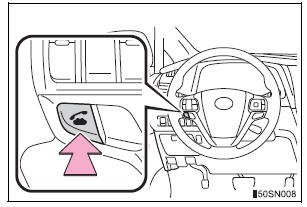
- Press and hold the
 until
until
you hear the beeps
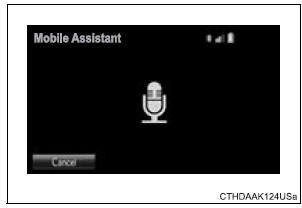
- The Mobile Assistant can be used only when the following screen is displayed.
To cancel the Mobile Assistant, select “Cancel”, or press and hold the
 on the steering wheel.
To restart the Mobile Assistant for additional commands, press the on the steering wheel.
- Mobile Assistant can only be restarted after the system responds to a voice command.
- After some phone and music commands, the Mobile Assistant feature will automatically end to complete the requested action.
Adjusting the Mobile Assistant volume
The volume of the Mobile Assistant can be adjusted using the “PWR/VOL” knob or steering wheel volume control switches. The Mobile Assistant and phone call volumes are synchronized.
Notes about Mobile Assistant
- The available features and functions may vary based on the iOS version installed on the connected device.
- Some Siri® features are limited in Eyes Free mode. If you attempt to use an unavailable function, Siri® will inform you that the function is not available.
- If Siri® is not enabled on the cellular phone connected via Bluetooth®, an error message will be displayed on the screen.
- While a phone call is active, the Mobile Assistant cannot be used.
- If using the navigation feature of the cellular phone, ensure the active audio source is Bluetooth® audio or iPod in order to hear turn by turn direction prompts.
Stored owner’s manualImported HTML from the shared Autotk manuals tables. Not an official Toyota site.