2022 Toyota Sienna Owner’s Manual — Using the Multimedia system
Audio system
Selecting the audio source
Switching between audio sources such as radio and CD are explained in this section.
Changing audio source
- Press the “AUDIO” button to display the audio source selection screen.
If the audio source selection screen is not displayed, press the “AUDIO” button again.
- Select the desired audio source.
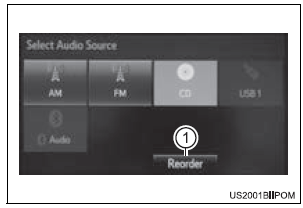
- Select the desired audio source then
 or
or
 to
to
reorder.
Using the steering wheel switches to change audio source
The audio source changes as follows each time the “MODE/HOLD” switch is pressed.
List screen operation
When a list screen is displayed, use the appropriate buttons to scroll through the list.
How to scroll
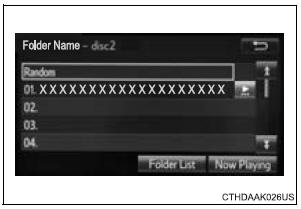
 : Select to scroll to the next
or previous page.
 : If
: If
 appears to the right of
titles, the complete titles are too long for the display. Select this button to scroll the title.
Turn the “TUNE•SCROLL” knob to move the cursor box to select a desired item from the list, and press the “TUNE•SCROLL” knob to play it. The track that is being played is highlighted.
To return to the top screen, select “Now Playing” on the list screen.
Selecting, fast-forwarding and reversing tracks/files/songs
Selecting a track/file/song
Press the “” or “” button on “SEEK•TRACK” or turn the “TUNE•SCROLL” knob to select the desired track/file/song number.
To fast-forward or reverse, press and hold the “” or “” button on “SEEK•TRACK”.
Selecting a track/file/song from the track/file/song list
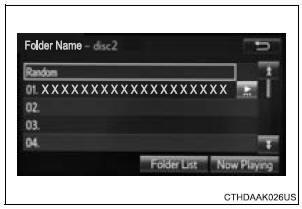
- Select “Browse” or cover art.
- Select the desired track/file/ song.
When an MP3/WMA/AAC disc or USB memory device is being used, the folder can be selected. When a Bluetooth® device or iPod is being used, the album can be selected.
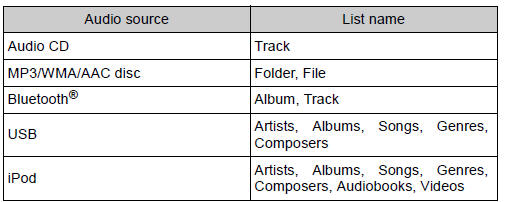
According to the audio device, the following is displayed.
Optimal use of the audio system
On the “Sound Settings” screen, sound quality (Treble/Mid/ Bass), volume balance can be adjusted.
How to adjust the sound settings and sound quality
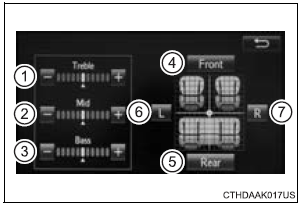
1, 2, 3 Select “-” or “+” to adjust the treble, mid or bass to a level between -5 and 5.
4, 5 Select “Front” or “Rear” to adjust the front/rear audio balance.
6, 7 Select “L” or “R” to adjust the left/right audio balance
The sound quality level is adjusted individually
The treble, mid and bass levels can be adjusted for each audio mode separately.
Stored owner’s manualImported HTML from the shared Autotk manuals tables. Not an official Toyota site.