2022 Toyota Sienna Owner’s Manual — Multi-information display (with color display)
Instrument cluster
Display contents
The multi-information display presents the driver with a variety of vehicle data.
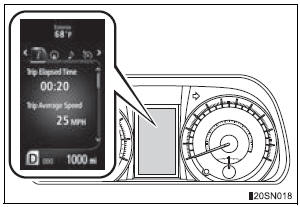
- Menu icons
Displays the following information when an icon is selected.
Some of the information may be displayed automatically depending on the situation.
 Drive information
Select to display various drive data.
 Navigation system-linked display
(if equipped)
Select to display the following navigation system-linked information.
- Route guidance
- Compass display (north-up display/heading-up display)
 Audio system-linked display
Select to enable selection of an audio source or track on the meter using the meter control switches.
 Cruise control display (if
equipped)
Select to display the information and operation procedures of the cruise control.
 Dynamic radar cruise control
display (if equipped)
Select to display the information and operation procedures of the dynamic radar cruise control. The  tab will change to
 when the vehicle is in constant
speed control mode.
 Warning message display
Select to display warning messages and measures to be taken if a malfunction is detected.
 Settings display
Select to change the meter display settings.
- Intuitive parking assist display (if equipped)
Automatically displayed when the system is used.
Operating the meter control switches
The multi-information display is operated using the meter control switches.
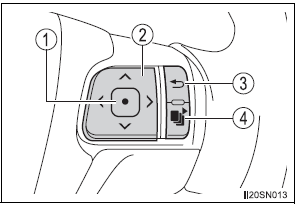
- Enter/Set
- Select an item/Change pages
- Return to the previous screen
- Press: Displays the screen registered as the top screen
When no screen has been registered, the drive information screen will be displayed.
Press and hold: Registers the currently displayed screen as the top screen When the confirmation screen is displayed, select yes to register the screen. If the selected screen cannot be registered, a registration failure message will be shown.
Drive information
- Average fuel economy*1, 2 Displays the average fuel consumption since the function was reset.*3
- Tank average fuel economy*1, 2 Displays the average fuel consumption since the vehicle was refueled.
- Trip average fuel economy*1, 2 Displays the average fuel consumption since the engine was started.
- Current fuel economy*1, 2 Displays the current rate of fuel consumption.
- Distance to empty*1 Displays the estimated maximum distance that can be driven with the quantity of fuel remaining.
- This distance is computed based on your average fuel consumption.
As a result, the actual distance that can be driven may differ from that displayed.
- When only a small amount of fuel is added to the tank, the display may not be updated.
When refueling, turn the engine switch off. If the vehicle is refueled without turning the engine switch off, the display may not be updated.
- Trip distance*1
Displays the driving distance after the engine was started. - Distance*1
Displays the driving distance since the function was reset.*3 - Trip elapsed time*1 Displays the elapsed time since the function was reset.*3
- Elapsed time*1
Displays the elapsed time since the engine was started. - Trip average speed*1 Displays the average vehicle speed since the function was reset.*3
- Average speed*1
Displays the average vehicle speed since the engine was started. - AWD control (if equipped) Displays the torque distribution between the front and rear axles of the AWD control system
- Display off
A blank screen is displayed.
*1: Can be registered to Drive information 1 through 3. *2: Use the displayed fuel consumption as a reference.
*3: Resetting procedures:
- Select a function to be reset using the meter control switches and then press and hold to reset.
- If there is more than one function that can be reset, check boxes will be displayed next to those functions.
Settings display
The settings of the following items can be changed, refer to
- Language
Select to change the language on the display. - Units
Select to change the unit for measure of the fuel consumption and outside temperature. - Eco Driving Indicator Light Select to activate/deactivate the Eco Driving Indicator Light.
 switch settings
You can register 1 screen as the top screen. To register, press and hold while the desired screen
is displayed.- Drive information 1 through 3 Select to select up to 2 items that will be displayed on a Drive information screen, up to 3 Drive information screens can be set.
- Pop-up display
Select to set the following pop-up displays, which may appear in some situations, on/off.
- Route guidance display of the navigation system-linked system (if equipped)
- Incoming call display of the hands-free phone system
- Cruise control operation display
- Instrument panel brightness adjustment display
- Shift position display
- Accent color
Select to change the accent colors on the screen, such as the cursor color. - Speed limit display (if equipped) Select to set the display of speed limit information stored in the navigation system to on with the speed limit caution indicator (yellow) enabled, on with the speed limit caution not enabled, or off. If enabled, the speed limit caution indicator will come on if the vehicle speed exceeds the displayed speed limit.
The display may not be available for some regions.
- Maintenance Reset
Select to reset the maintenance data - Initialization
Registered or changed meter settings will be deleted or returned to their default setting.
Pop-up display
In some situations, such as when a switch operation is performed, a pop-up display, such as the operating cruise control switch, will be temporarily displayed on the multi-information display.
The pop-up display function can be set on/off.
Setting display automatic cancelation
In the following situations, setting display in which the settings can be changed through the meter control switch will automatically be turned off.
- If a warning message appears while the setting display is displayed
- When the vehicle begins to move while the setting display is displayed
Liquid crystal display
Small spots or light spots may appear on the display. This phenomenon is characteristic of liquid crystal displays, and there is no problem continuing to use the display.
| WARNING
The information display at low temperatures Allow the interior of the vehicle to warm up before using the liquid crystal information display. At extremely low temperatures, the display monitor may respond slowly, and display changes may be delayed. For example, there is a lag between the driver’s shifting and the new gear number appearing on the display. This lag could cause the driver to downshift again, causing rapid and excessive engine braking and possibly an accident resulting in death or injury. Cautions during setting up the display As the engine needs to be running during setting up the display, ensure that the vehicle is parked in a place with adequate ventilation. In a closed area such as a garage, exhaust gases including harmful carbon monoxide (CO) may collect and enter the vehicle. This may lead to death or a serious health hazard. |
| NOTICE
During setting up the display To prevent battery discharge, ensure that the engine is running while setting up the display features. |
Stored owner’s manualImported HTML from the shared Autotk manuals tables. Not an official Toyota site.