2022 Toyota Sienna Owner’s Manual — Basic Operations
Audio system
Audio system types
- Entune Audio
- Entune Audio Plus/Entune Premium Audio with Navigation
Owners of models equipped with a navigation system should refer to the “NAVIGATION AND MULTIMEDIA SYSTEM OWNER’S MANUAL”.
Using cellular phones
Interference may be heard through the audio system’s speakers if a cellular phone is being used inside or close to the vehicle while the audio system is operating.
| NOTICE
To prevent battery discharge Do not leave the audio system on longer than necessary when the engine is off. To avoid damaging the audio system Take care not to spill drinks or other fluids on the audio system. |
Audio system
Operations such as listening to audio, using the hands-free phone, confirming vehicle information and changing audio system settings are started by using the following buttons.
Audio system operation buttons
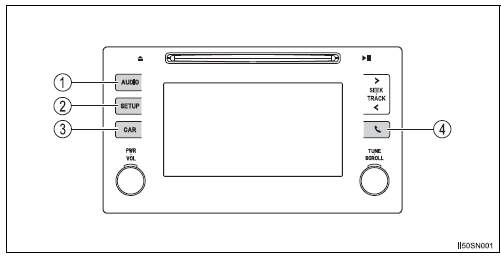
- “AUDIO” button
Display the “Select Audio Source” screen or audio top screen. - “SETUP” button
Press this button to customize the function settings. - “CAR” button
Press this button to access the vehicle information.  button
Press this button to access the Bluetooth® hands-free system.
Touch screen gestures
Operations are performed by touching the screen directly with your finger.
|
Operation method |
Outline |
Main use |
|
|
Touch Quickly touch and release once. |
Changing and selecting various settings. |
|
|
Drag* Touch the screen with your finger, and move the screen to the desired position. |
Scrolling the lists, using scroll bar in lists, etc |
|
|
Flick* Quickly move the screen by flicking with your finger. |
Moving the list screen (list screen limit). |
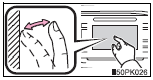
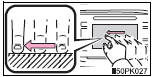
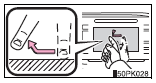
*: The above operations may not be performed on all screens. Also if the vehicle reaches a high altitude, it may become hard to perform above functions.
When using the touch screen
- If the screen is cold, the display may be dark, or the system may seem to be operating slightly slower than normal.
- The screen may seem dark and hard to see when viewed through sunglasses.
Change your angle of viewing, adjust the display on the “Display Settings” screen or remove your sunglasses.
- Flick operations may not be performed smoothly in high altitudes.
| NOTICE
To avoid damaging the touch screen
|
Steering wheel audio switches
Some audio features can be controlled using the switches on the steering wheel.
Operation may differ depending on the type of audio system or navigation system. For details, refer to the manual provided with the audio system or navigation system.
Operating the audio system using the steering wheel switches
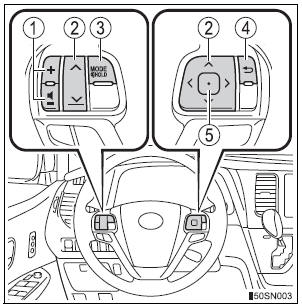
- Volume switch
- Increases/decreases volume
- Press and hold: Continuously increases/decreases volume
- Cursor switch (“” and “”)
- Selects (radio stations/radio presets/tracks/files/songs)
- Press and hold: Fast up/ down (radio stations)
- Fast up/down (tracks/files)
Cursor switch (“” and “”)
- Seek up/down (radio station)
- Press and hold: Continuously seek up/down (radio station)
- Press and hold: Fast forward/rewind (tracks/files/songs)
- “MODE/HOLD” switch
- Changes audio source
- Press and hold this switch to mute or pause the current operation To cancel the mute or pause, press and hold.
- Back switch
- Returns to the previous screen (Only when the back button is displayed)
- Enter switch
- Displays the preset/list screen
- Selects items
| WARNING
To reduce the risk of an accident Exercise care when operating the audio switches on the steering wheel. |
AUX Port/USB Port
Connect an iPod, USB memory device or portable audio player to the AUX port/USB port as indicated below. Select “iPod”, “USB” or “AUX” on the audio source selection screen and the device can be operated via audio system.
Connecting using the AUX port/USB port
iPod
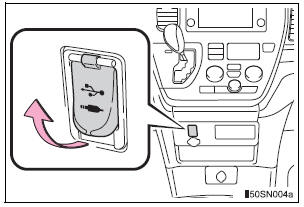
Open the cover and connect an iPod using an iPod cable.
Turn on the power of the iPod if it is not turned on.
USB memory
Open the cover and connect the USB memory device.
Turn on the power of the USB memory device if it is not turned on.
Portable audio player
Open the cover and connect the portable audio player.
Turn on the power of the portable audio player if it is not turned on.
| WARNING
While driving Do not connect a device or operate the device controls. |
Basic audio operations
Basic audio operations and functions common to each mode are explained in this section.
Operating the audio system
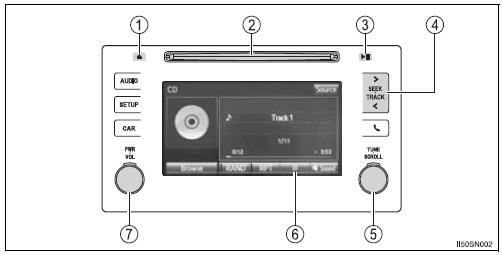
- Press this button to eject a disc
- Insert a disc into the disc slot
- Press to pause or resume playing music.
- Press the “<” or “>” button to seek up or down for a radio station, or to access a desired track or file.
- Turn this knob to select radio station bands, tracks and files. Also the knob can be used to select items in the list display.
 : Select to pause music.
 : Select to resume playing
music.- Press this knob to turn the audio system on and off, and turn it to adjust the volume.
Random playback
Select  to change on/off.
Repeat play
Select to change on/off.
Using cellular phones Interference may be heard through the audio system’s speakers if a cellular phone is being used inside or close to the vehicle while the audio system is operating.
Certification (caution)
Laser product
This product is a class 1 laser product.
Do not open the cover of the player or attempt to repair the unit yourself.
Refer servicing to qualified personnel.
- Laser products
This product utilizes a laser.
Use of controls or adjustments or performance of procedures other than those specified herein may result in hazardous radiation exposure.
THE USE OF OPTICAL INSTRUMENTS WITH THIS PRODUCT WILL INCREASE EYE HAZARD.
| NOTICE
To prevent battery discharge Do not leave the audio system on longer than necessary when the engine is off. To avoid damaging the audio system Take care not to spill drinks or other fluids on the audio system. |
Stored owner’s manualImported HTML from the shared Autotk manuals tables. Not an official Toyota site.